
Carpool Karaoke Microphone Instructions: A Comprehensive Guide (Updated 02/03/2026)
Welcome! This guide details setup, features, and troubleshooting for Singing Machine’s The Mic, transforming your vehicle into a mobile karaoke experience for passengers only․
The Mic by Singing Machine revolutionizes in-car entertainment, bringing the joy of Carpool Karaoke directly to you and your passengers․ This innovative device transforms any vehicle into a dynamic, mobile karaoke stage, allowing for spontaneous singalongs to your favorite songs․ Designed with simplicity and user-friendliness in mind, The Mic connects seamlessly via Bluetooth to your smartphone, offering a wireless experience for ultimate freedom and enjoyment․
However, it’s crucial to remember that The Mic is intended solely for passenger use․ Driver distraction is a serious safety concern, and Singing Machine prioritizes user safety above all else․ Improper use by the driver can lead to accidents, injuries, or even fatalities․ This guide will provide comprehensive instructions to ensure a safe and entertaining karaoke experience, focusing on proper setup, feature utilization, and troubleshooting common issues․ Prepare to unleash your inner superstar – responsibly!
What is The Mic and its Purpose?
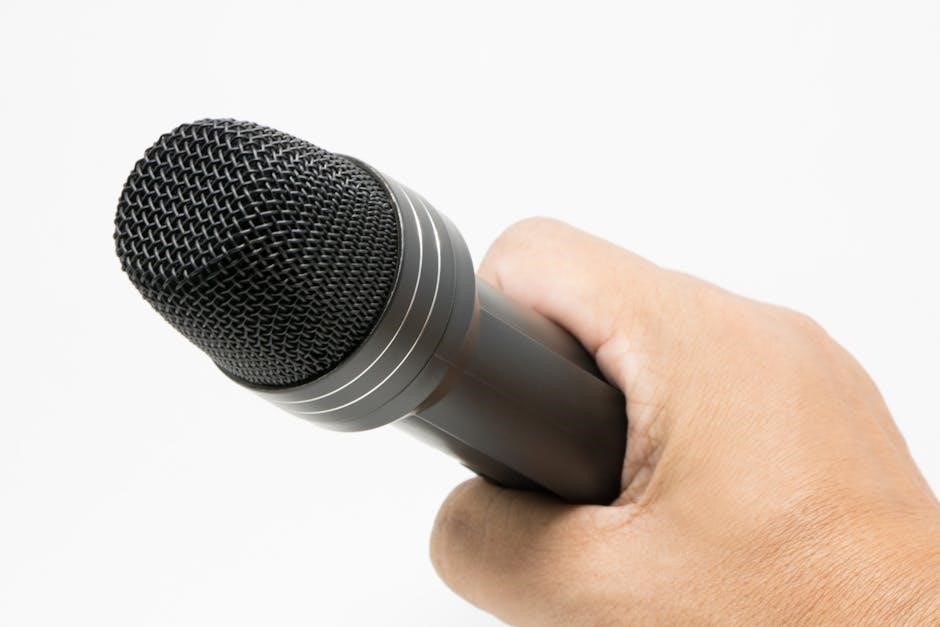
The Mic, officially known as Singing Machine’s Carpool Karaoke The Mic 1․0, is a wireless, Bluetooth-enabled microphone specifically designed to enhance the in-car karaoke experience․ Its primary purpose is to transform your vehicle into a mobile karaoke studio, allowing passengers to sing along to their favorite tunes streamed from a compatible smartphone․ The device boasts integrated microphone volume and echo controls, enabling users to customize their vocal performance for an enhanced and immersive singing experience․
Beyond simple karaoke, The Mic aims to recreate the fun and spontaneity of popular Carpool Karaoke segments․ It’s a social entertainment device intended to foster connection and enjoyment during road trips or commutes․ Crucially, it’s designed exclusively for passenger use, serving as a fun and engaging activity while ensuring the driver remains focused on the road․ The Bluetooth range is limited to 30 feet/10 meters for optimal performance․
Safety Precautions: Driver Distraction Warning
Critical Safety Information: Singing Machine explicitly states that Carpool Karaoke The Mic (the Product) is intended solely for use by passengers․ Under no circumstances should the driver of any motor vehicle operate or interact with the microphone while driving․ Utilizing this device while operating a vehicle creates a significant distraction, severely compromising driver attention and increasing the risk of accidents․
Distracted driving can lead to personal injury, property damage, or even fatalities․ Maintaining full concentration on the road, traffic conditions, and surrounding environment is paramount for safe operation of a vehicle․ The enjoyment of The Mic should never supersede responsible driving practices․ Passengers are responsible for ensuring the driver remains focused and undistracted․ Prioritize safety above all else when using this product․
Setting Up Your Carpool Karaoke Microphone
Begin your karaoke journey! This section guides you through Bluetooth pairing, compatibility checks, and connecting to your car’s audio system for optimal performance․
Bluetooth Pairing with Your Smartphone
Establishing a connection is simple! First, ensure your smartphone’s Bluetooth is enabled․ Power on The Mic; it will automatically enter pairing mode․ On your iOS (version 10 or later) or Android device, locate “The Mic” in the available Bluetooth devices list and select it․
You may be prompted for a pairing code – if so, enter “0000”․ A successful connection will be indicated by a solid blue light on the microphone․ Remember, the effective Bluetooth range is limited to 30 feet (10 meters) for optimal performance․
If pairing fails, try restarting both your smartphone and the microphone․ Ensure no other devices are actively connected to The Mic․ For Samsung Galaxy S23 Ultra users, confirm Bluetooth settings are optimized for audio devices․
Compatibility: iOS Requirements (iOS 10 or Later)
Seamless integration with your Apple devices is key! The Mic is specifically designed to work flawlessly with iPhones and iPads running iOS 10 or any subsequent version․ This ensures full functionality and access to all features, including optimal sound quality and reliable Bluetooth connectivity․
Older iOS versions may experience compatibility issues, such as connection instability or limited feature support․ To verify your iOS version, navigate to Settings > General > About > Software Version․ If an update is available, we strongly recommend installing it for the best possible experience․
Maintaining an updated iOS version guarantees compatibility with the latest Bluetooth protocols and audio codecs, maximizing the performance of your Carpool Karaoke microphone․
Connecting to Your Car’s Audio System
Transform your car into a karaoke haven! Once The Mic is paired with your smartphone via Bluetooth, connecting to your car’s audio system is the next crucial step․ This allows the sound from the microphone and karaoke app to be amplified through your vehicle’s speakers․
Most modern cars offer Bluetooth audio connectivity․ Within your car’s infotainment system, navigate to the Bluetooth settings and select “pair new device․” Your smartphone, already connected to The Mic, should appear as an option․ Select it to establish the audio connection․
Alternatively, utilize an auxiliary (AUX) cable․ Connect one end to your smartphone’s headphone jack and the other to your car’s AUX input․ Ensure the volume on both your smartphone and car stereo are appropriately adjusted for optimal sound․
Wireless Range: Bluetooth Connection Limit (30 feet/10 meters)
Maintain a stable connection for uninterrupted karaoke fun! The Mic utilizes Bluetooth technology for wireless operation, offering freedom of movement within certain parameters․ However, Bluetooth signals have a limited range․ To ensure a consistent audio stream, remain within 30 feet (approximately 10 meters) of the paired smartphone․
Exceeding this range can lead to signal degradation, resulting in audio dropouts, distortion, or complete disconnection․ Obstacles like walls or other electronic devices can further reduce the effective range․ Keep the smartphone and microphone relatively close together, ideally within the vehicle․
If you experience connectivity issues, verify that both devices are within the specified range and free from interference․ A stronger Bluetooth signal guarantees a smoother, more enjoyable carpool karaoke experience․

Microphone Features and Controls

Enhance your performance! The Mic boasts intuitive controls for volume adjustment and echo effects, allowing personalized sound optimization during your karaoke sessions․
Microphone Volume Control
Adjusting your vocal presence is simple! The Carpool Karaoke Microphone features dedicated controls for precise volume adjustment․ Located conveniently on the microphone’s body, these controls allow passengers to easily tailor the microphone’s output to their singing style and the vehicle’s ambient noise levels․
Begin by ensuring the microphone is powered on and connected via Bluetooth to your smartphone․ Start with the volume control set to a moderate level․ As you sing, incrementally increase or decrease the volume until your voice is clear and balanced within the car’s audio system․
Experiment with different volume settings to find the sweet spot that delivers optimal sound quality․ Remember, the goal is to achieve a natural and enjoyable singing experience without distortion or feedback․ Proper volume control is key to a fantastic karaoke session!
Echo Control for Enhanced Singing
Add a professional touch to your performance! The Carpool Karaoke Microphone incorporates echo control, allowing passengers to enhance their vocals with a subtle reverberation effect․ This feature simulates the ambiance of a live performance space, creating a richer and more immersive karaoke experience․
The echo control is conveniently located alongside the volume controls on the microphone’s body․ Begin with the echo effect set to its lowest level․ Gradually increase the echo until you achieve a pleasing depth and fullness to your voice․
Be mindful not to overdo the echo, as excessive reverberation can muddy the sound․ Experiment to find the perfect balance that complements your singing style and the chosen song․ Enjoy a more polished and captivating karaoke performance!
Powering On/Off and Charging
Getting started is simple! To power on your Carpool Karaoke Microphone, press and hold the power button located on the microphone’s handle for approximately two seconds; A visual indicator, typically an LED light, will confirm activation․ To power off, repeat this process – a press and hold of the power button until the indicator light extinguishes․
Charging the microphone is essential for uninterrupted karaoke fun․ Use the provided USB cable to connect the microphone to a powered USB port․ A full charge typically takes around three hours, providing ample singing time․
During charging, an LED indicator will illuminate, often changing color to signify charging status․ Once fully charged, the indicator will typically turn off or display a solid color․

Troubleshooting Common Issues
Encountering problems? This section addresses Bluetooth connectivity, sound quality, voice recognition, and battery concerns to ensure a seamless karaoke experience within your vehicle․
Bluetooth Connection Problems
Difficulty pairing? First, confirm your smartphone’s Bluetooth is enabled and discoverable․ Ensure The Mic is powered on and in pairing mode – consult the power section for details․ Verify your iOS version is iOS 10 or later for optimal compatibility․
If pairing fails, try forgetting the device in your phone’s Bluetooth settings and re-initiating the pairing process․ Remember, the effective Bluetooth range is limited to 30 feet (10 meters); move closer to the microphone․ Interference from other Bluetooth devices can also cause issues; try disconnecting nearby devices temporarily․
If problems persist, restart both your smartphone and The Mic․ A fresh start often resolves connectivity glitches․ Finally, ensure no other devices are actively connected to the microphone simultaneously, as it can only maintain one connection at a time․
Sound Quality Issues: Adjusting Microphone Settings
Experiencing muffled or distorted audio? Begin by adjusting the microphone volume control directly on The Mic itself․ Experiment with different volume levels to find the sweet spot for your voice and the car’s acoustics․ Next, utilize the echo control feature to add depth and richness to your vocals – subtle adjustments are key!
If road noise is interfering, try reducing the microphone’s sensitivity (if adjustable) or slightly increasing the volume on your connected smartphone․ Ensure your car’s audio system is properly balanced and the equalizer settings aren’t negatively impacting vocal frequencies․
Remember, optimal sound quality depends on both microphone settings and your car’s audio environment․ Experimentation is crucial!
Microphone Not Recognizing Voice
Is your The Mic silent when you sing? First, confirm the microphone is powered on and properly paired with your smartphone via Bluetooth․ Ensure the microphone volume isn’t set to zero․ Next, check your smartphone’s Bluetooth settings to verify The Mic is selected as the active input device․
Within your chosen karaoke app (Smule, SingSnap, etc․), verify microphone permissions are enabled․ Some apps require explicit permission to access your device’s microphone․ Try restarting both your smartphone and The Mic – a simple reboot often resolves connectivity glitches․
Finally, ensure you are speaking directly into the microphone’s head and not too far away․ A clear, direct vocal input is essential for proper recognition․
Battery Life and Charging Concerns
Is your The Mic losing power quickly, or not charging? Battery life varies with volume and usage, but generally provides several hours of singing fun on a full charge․ Use the included USB cable and a 5V/1A power adapter for optimal charging․ Avoid using fast chargers, as they can potentially damage the battery․
A full charge typically takes around 2-3 hours․ While charging, a red indicator light will illuminate; it will turn off or change color (depending on the model) when fully charged․ If the microphone isn’t charging, try a different USB cable and power adapter․
If issues persist, contact Singing Machine support for assistance․ Do not disassemble the microphone, as this will void the warranty․
Using The Mic with Karaoke Apps
Enhance your experience! The Mic seamlessly integrates with popular karaoke platforms like Smule, SingSnap, Sing King, Yokee, and KaraFun for endless song choices․
Compatibility with Smule
Smule Integration: Unleash Your Inner Star!
The Carpool Karaoke Microphone offers excellent compatibility with the Smule karaoke app, allowing passengers to enjoy a dynamic and interactive singing experience․ To connect, first ensure your smartphone is paired with The Mic via Bluetooth․ Then, open the Smule app and navigate to the settings menu․ Within the settings, select the microphone input and choose The Mic from the list of available devices․
Once selected, Smule will utilize the microphone for voice capture, transmitting your performance to the Smule platform․ Experiment with The Mic’s echo control to achieve a professional sound․ Remember, optimal performance relies on a stable Bluetooth connection (within 30 feet/10 meters) and a fully charged microphone․ Enjoy duets, solo performances, and group sing-alongs directly through Smule, powered by The Mic!
Compatibility with SingSnap
SingSnap Harmony: Elevate Your Karaoke Sessions!
The Carpool Karaoke Microphone seamlessly integrates with the SingSnap application, providing passengers with a fantastic platform for recording and sharing their vocal talents․ Begin by establishing a stable Bluetooth connection between your smartphone and The Mic․ Launch the SingSnap app and access the settings menu, typically found within the profile or performance options․
Locate the microphone selection area and choose The Mic as your preferred input device․ SingSnap will then utilize the microphone for capturing your singing, allowing you to record performances and participate in community challenges․ Utilize the microphone’s volume and echo controls for optimal audio quality․ Ensure your device remains within the 30 feet/10 meter Bluetooth range for uninterrupted enjoyment․ SingSnap and The Mic – a perfect pairing!
Compatibility with Sing King
Unleash Your Inner Rockstar with Sing King & The Mic!
The Carpool Karaoke Microphone offers excellent compatibility with the Sing King karaoke app, enhancing your in-car entertainment experience for passengers․ First, ensure a reliable Bluetooth connection exists between your smartphone and The Mic․ Open the Sing King application and navigate to the settings menu, usually accessible through the app’s main interface․
Within the settings, find the audio input or microphone selection option․ Choose The Mic from the list of available devices․ Sing King will then utilize the microphone to capture your vocals, enabling you to record and share your performances․ Adjust the microphone’s volume and echo controls to achieve the best possible sound․ Remember to stay within the 30 feet/10 meter Bluetooth range for a seamless connection․ Sing King and The Mic – a dynamic duo!
Compatibility with Yokee
Yokee & The Mic: A Harmonious Pairing for Passengers!
The Carpool Karaoke Microphone seamlessly integrates with the Yokee karaoke app, providing a fun and engaging experience for those riding along․ Begin by establishing a stable Bluetooth connection between your smartphone and The Mic․ Launch the Yokee application and access the settings menu, typically found within the app’s interface․
Locate the audio input or microphone settings within Yokee․ Select The Mic as your preferred audio source․ Yokee will then utilize the microphone to capture your voice, allowing you to sing along to your favorite songs and record your performances․ Fine-tune the microphone’s volume and echo controls for optimal audio quality․ Maintain a connection within the 30 feet/10 meter Bluetooth range․ Yokee and The Mic – sing your heart out!
Compatibility with KaraFun
KaraFun & The Mic: Elevate Your Karaoke Journey!
Singing Machine’s The Mic offers excellent compatibility with the KaraFun karaoke platform, enhancing the in-car passenger experience․ First, ensure a reliable Bluetooth connection exists between your smartphone and the microphone, staying within the 30 feet/10 meter range․ Open the KaraFun application on your device and navigate to the settings menu, usually represented by a gear icon․
Within KaraFun’s settings, find the audio input or microphone selection․ Choose The Mic as the designated audio source․ KaraFun will then process your vocals through the microphone, enabling you to enjoy karaoke on the go․ Adjust the microphone’s volume and echo controls to achieve the best possible sound․ Remember, The Mic is intended for passenger use only!

Advanced Usage & Optimization
Maximize your karaoke fun! Optimize placement, reduce road noise, and control vocal processors for superior audio quality while ensuring passenger safety and enjoyment․
Reducing Road Noise While Maintaining Audio Quality
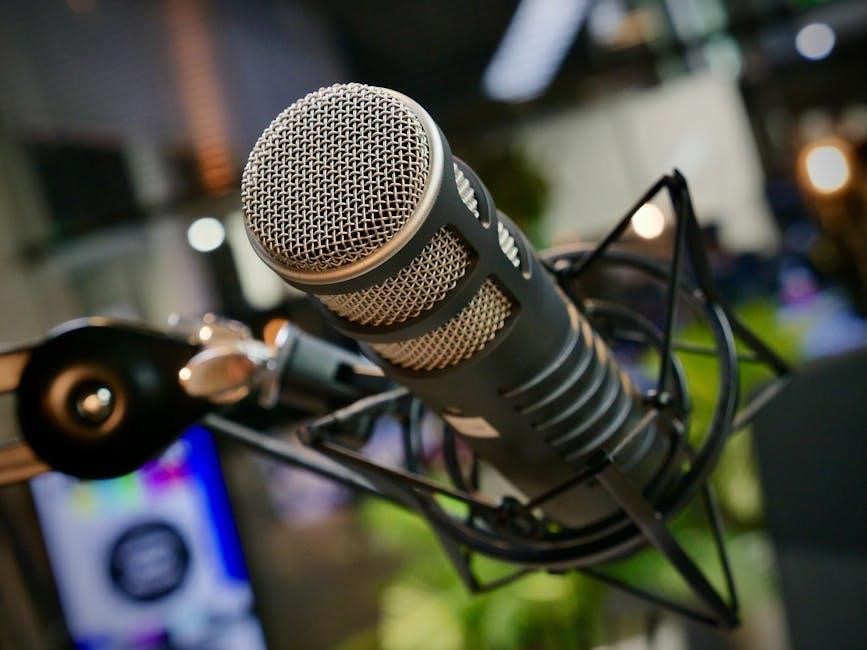
Achieving clear vocals amidst travel sounds requires strategic adjustments․ Road noise significantly impacts karaoke enjoyment, but several techniques can minimize its effect without sacrificing audio fidelity․ Firstly, close vehicle windows to create a quieter internal environment․ Utilizing the microphone’s cardioid pickup pattern is crucial; ensure it’s directed towards the singer’s mouth, minimizing ambient sound capture․
Experiment with microphone placement – closer proximity generally reduces noise, but avoid obstructing the driver’s view or interfering with vehicle operation․ Consider utilizing noise-canceling headphones for the singer to isolate their voice and the music․ Adjusting the echo control can also help mask some road noise, creating a fuller, more immersive sound․ Remember, passenger enjoyment is paramount, so balance noise reduction with comfortable singing conditions․
Footprint and Control of Vocal Processors
For users desiring advanced vocal effects, integrating a compact vocal processor is key․ Given the limited space within a vehicle, prioritize units with a minimal footprint․ Look for processors offering intuitive controls – knobs and clearly labeled buttons are preferable to complex menu navigation while driving is occurring․ Bluetooth connectivity allows seamless integration with The Mic and your Samsung Galaxy S23 Ultra․
Consider processors with preset vocal effects tailored for karaoke, simplifying adjustments․ Remote control functionality, via a smartphone app, enhances usability and safety․ Ensure the processor’s output levels are compatible with The Mic’s input sensitivity to avoid distortion․ Prioritize processors offering real-time adjustments, allowing dynamic control over reverb, compression, and equalization during performance․
Optimizing Microphone Placement in the Vehicle
Strategic microphone placement is crucial for optimal audio quality․ Position The Mic approximately 6-12 inches from the singer’s mouth, avoiding direct airflow from vents․ Experiment with angles to minimize road noise pickup; a slightly off-axis position can reduce wind and engine sounds․ Secure mounting options, like a phone holder adapter, prevent movement during driving․
Consider the vehicle’s interior acoustics․ Soft surfaces absorb sound, while hard surfaces reflect it․ Adjust microphone gain accordingly․ Avoid placing the microphone near windows or sunroofs, as these can introduce unwanted noise․ For best results, ensure passengers are singing directly into the cardioid microphone, maximizing vocal clarity and minimizing background distractions․
Using with Samsung Galaxy S23 Ultra
Seamless integration with your Samsung Galaxy S23 Ultra is assured! Begin by ensuring Bluetooth is enabled on both your phone and The Mic․ Initiate pairing within your S23 Ultra’s Bluetooth settings – the microphone should appear as “Singing Machine The Mic․” Once connected, launch your preferred karaoke application (Smule, SingSnap, etc․)․
The S23 Ultra’s powerful processor handles audio processing efficiently․ Verify app permissions allow microphone access․ Adjust volume levels on both your phone and The Mic for a balanced sound․ Remember the Bluetooth range is limited to 30 feet/10 meters․ Enjoy a premium karaoke experience, leveraging your S23 Ultra’s capabilities with The Mic!

Singing Machine Product Details
Discover The Mic 1․0! Designed exclusively for passenger enjoyment, it delivers a premium karaoke experience, prioritizing user safety and a fun, mobile setup․
Product Intended Use: Passengers Only
Crucially, Singing Machine’s Carpool Karaoke The Mic (the Product) is engineered solely for use by vehicle passengers․ Under no circumstances should the driver operate or interact with the microphone while the vehicle is in motion․ This restriction is paramount to ensuring driver focus and preventing potentially dangerous distractions․
Improper utilization of this product by a driver introduces significant risks, including, but not limited to, distracted driving, increased accident probability, potential personal injury, and even the tragic possibility of fatality․ Prioritizing road safety is our utmost concern․ Passengers are encouraged to enjoy the karaoke experience responsibly, allowing the driver to maintain complete concentration on operating the vehicle․ Remember, a safe journey is the most important destination․
We strongly advise passengers to be mindful of their surroundings and volume levels to avoid disrupting the driver’s ability to hear essential traffic sounds․
Understanding The Mic 1․0 Specifications

The Mic 1․0 is a wireless, Bluetooth-enabled microphone designed to transform any car into a mobile karaoke stage․ Its core functionality revolves around connecting to your smartphone (iOS 10 or later recommended) to stream audio and vocals․ A key specification is its Bluetooth range, which extends up to 30 feet (approximately 10 meters) from the paired device, ensuring a stable connection within the vehicle․
The microphone features integrated volume and echo controls, allowing users to customize their singing experience․ It’s powered by a rechargeable battery, providing hours of karaoke fun on a single charge․ The device is specifically designed for passenger use, and its compact form factor facilitates easy handling and storage․
Remember, optimal performance relies on a fully charged battery and a stable Bluetooth connection․
Singing Machine’s Commitment to User Experience
Singing Machine prioritizes delivering a seamless and enjoyable karaoke experience with The Mic․ Our commitment extends beyond simply providing a functional device; we aim to create a fun, safe, and user-friendly product for all passengers․ We continually refine our designs based on user feedback, ensuring intuitive controls and reliable performance․
Safety is paramount․ The Mic is explicitly intended for passenger use only, and we strongly discourage any operation by the driver to prevent distracted driving․ We provide comprehensive instructions and troubleshooting guides to empower users to maximize their enjoyment․
We are dedicated to ongoing support and innovation, striving to enhance The Mic and its compatibility with popular karaoke applications․